If you've been experiencing crashes or freezes when right-clicking drive icons (either in the Computer folder or in the folder tree), see if you have Alcohol 120% (or 52%) installed. If so, try disabling its shell extension. Alcohol has had this problem on and off for years, and for some reason it seems to have popped back up again.
In the latest version of Opus (12.19) we've actually completely blacklisted the Alcohol shell extension using a new technique, so this problem should hopefully be gone for good now. If you're using an earlier version of Opus you can use the ShellExView tool to disable its shell extension.
Our FAQ has more information about right-click problems.
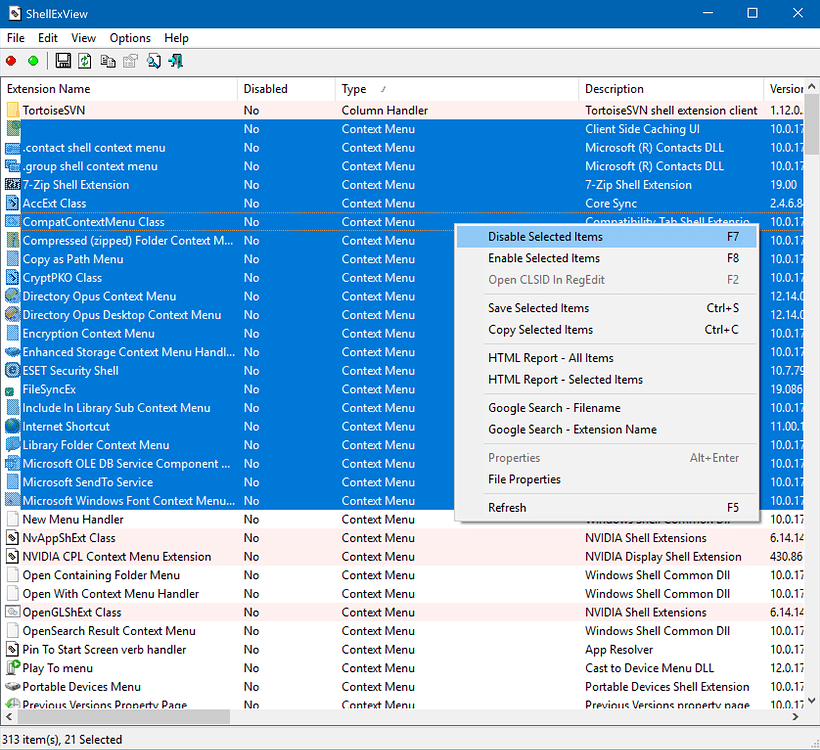
In general, ShellExView is a useful tool for investigating right-click crash problems. It shows you a list of all installed shell extensions and lets you selectively enable and disable them. Using a binary search technique you can quickly narrow down the offending extension.
- Download and run ShellExView, and click at the top of the list to sort by the Type column.
- The extensions with a Type of Context Menu are the ones we're interested in. Select half of them, right-click, and Disable Selected Items.
- Back in Opus, perform the right-click action that normally resulted in a crash or freeze and see if the problem comes back.
- If it does come back, you know the problem extension is in the half that hasn't been disabled yet. Try disabling some more until the problem stops happening.
- If it does not come back, you know the problem extension is in the half that has been disabled. Try re-enabling a few at a time until the problem comes back.
- With that process you can narrow it down to a particular component that is causing the problem.
If you find the component, what to do then depends a bit on what it is. Let us know what you find. It may be worth reporting to the component's authors, or looking for an update of the related software. We may also be able to install the same thing and see if we can reproduce the problem and, if so, add a workaround into Opus.
(This is a new FAQ. See the Resource Centre for a categorised list of all FAQs.)
- Minimum supported versions of Windows
Directory Opus 10 requires a minimum of Windows XP SP3 (or SP2 for the x64 edition). At the time of writing, those are the oldest versions of Windows which Microsoft themselves still support.
If the installer detects Windows XP with an old, unsupported service pack then it will display a message like this:
This program requires Service Pack 3 or later on Windows XP.
Setup will now exit.
If the installer detects an even older version of Windows (e.g. Windows 2000) it will say this:
Checking Operating System Version
The operating system is not adequate for running Directory Opus.
If you see either message but you are really running a later version of Windows (e.g. Windows 7 or Windows Vista) then the installer, or the program you have launched it from, must be configured to run in Compatibility Mode. See below for information on turning off Compatibility Mode.
- What is Compatibility Mode?
Compatibility Mode is a Windows feature. It lets you tell Windows to pretend to be an earlier version when running particular programs. To those programs, it will appear that they are running on the Windows version you specify, not the real version you are using. In some cases, this can resolve problems with programs not designed for the newer version of Windows. In other cases, it can cause problems. You should not use Compatibility Mode unless you have a good reason to; most software does not need it.
Compatibility Mode is turned on or off for a given .exe file, such as the Opus installer (e.g. DOpusInstall.exe) or Opus itself (e.g. dopus.exe).
If Compatibility Mode is turned on for an exe, it stays on even if you replace the exe with a newer version. It stays on even if you delete the exe, wait a month, then download a new copy to the same place. Windows remembers to use Compatibility Mode for anything with the same name, in the same place, until you tell it not to.
- Compatibility Mode and Directory Opus
We recommend that you do not use Compatibility Mode with Directory Opus. In particular, the way Explorer Replacement is implemented typically varies with each version of Windows. Also, parts of Opus take advantage of newer Windows features (e.g. UAC, Aero Glass, Libraries) and may stop working if Opus thinks it is running on an earlier version.
If you try to install an old version of Opus on a new version of Windows and the installer refuses and tells you to get a newer version of Opus, that is happening for a reason. The installer will only block an install if there is a known problem. In other cases, the installer may show a warning, informing you that your Windows version is not officially supported (e.g. because that Windows version did not even exist when the Opus version you're installing was made), but still allow you to continue if you choose.
Do not use Compatibility Mode to trick the installer into letting you install Opus; instead, get an updated version of Opus that supports your version of Windows. This is not just an attempt to get money out of you every time a new version of Windows is released; the update you need may be free, as was the case with Directory Opus 9 and Windows 7.
- How do I turn Compatibility Mode off?
To turn off Compatibility Mode for an exe, right-click the exe and choose Properties, then click on the Compatibility tab. Everything in the tab should be off, like in the screenshot below. If anything is turned on, turn it off and click OK.
If any of the checkboxes are on, but ghosted out, you need to click Change settings for all users first (which may trigger a UAC prompt).
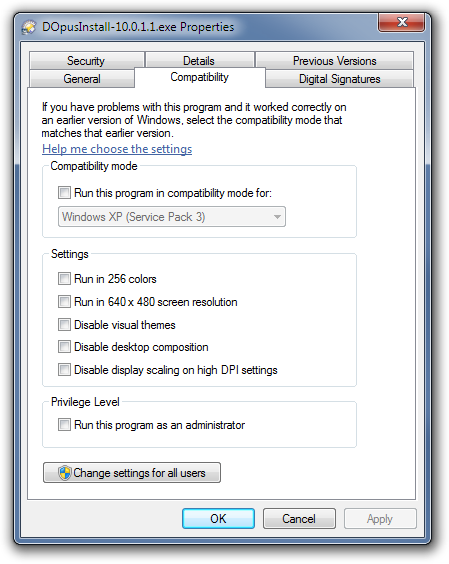
Make sure Compatibility Mode is off for the Opus installer.
Also, and equally important, make sure Compatibility Mode is off and for all of the Opus program files. The program files are usually under C:\Program Files\GPSoftware\Directory Opus (type /home into Opus if you have trouble locating them). You should check every .exe file within the Opus directory, including the ones in the Viewers sub-directory. If you are using 64-bit then you should also also check within x86 and x86\Viewers.
- Why was Compatibility Mode enabled when I have never touched those settings before?
Sometimes, after you have run an installer (or something that looks like an installer to Windows), you will see a Program Compatibility Assistant message like this:
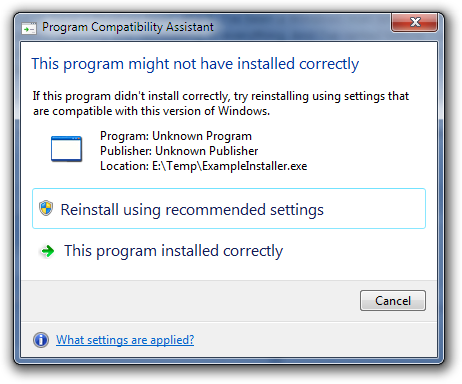
If you choose "reinstall using recommended settings", Compatibility Mode will be turned on for the installer and it will be re-run. Anything you install in that second run may also have Compatibility Mode turned on.
Unfortunately, the heuristics Windows uses to decide when to show the Program Compatibility Assistant are terrible (see below*) and it ends up causing more problems than it solves. If you see that message appear you should almost always choose "this program installed correctly" rather than the "recommended" option above it. Only do otherwise if there is an actual problem with the installer and only after checking for an updated version of the product you are trying to install.
Newer versions of the Directory Opus installer know what to do to prevent the Program Compatibility Assistant from appearing; older versions did not and would sometimes trigger it. Recall that the Compatibility Mode settings are remembered for an exe-path even if you delete or replace a particular version of the exe. This means if they were turned on in the past -- e.g. because the Program Compatibility Assistant triggered for an old installer -- then they will have stayed on until you manually turned them off.
(*The heuristics detect what a program doesn't do, not what it does. For example, if you rename a random program to installer.exe, then run it and exit it, you will probably get the Program Compatibility Assistant popping up and asking if you want to mess with the program's compatibility settings, even though nothing actually went wrong. Windows is guessing and guessing badly. This is why you still sometimes see it happen with recently-made installers for products designed with Windows Vista and Windows 7 in mind.)
- There is no migration path from 32-bit to 64-bit Windows
Microsoft do not provide a migration tool to take your installed software with you when you move from a 32-bit version of Windows to a 64-bit version. When you make that move you are expected to re-install all your programs from scratch. This is unlike, say, an upgrade from Windows Vista 32-bit to Windows 7 32-bit where you have the option of doing an in-place upgrade.
This isn't a case of Microsoft being mean or lazy; there are very good reasons for it. A lot of software will install different (or additional) components, in different places, with different registry settings when on 64-bit Windows. Any tool which naively attempts to move software components and registry settings from a 32-bit machine to a 64-bit machine is not going to know about those differences, especially not for every piece of software you may have installed. Even if it did somehow know, it would not be able to obtain the extra components required on 64-bit versions of Windows.
- Third-party 32/64-bit migration tools
Some third-party software vendors have attempted to make tools to migrate your programs from 32-bit to 64-bit Windows. We strongly advise against using these migration tools because they are likely to cause more problems than they solve. There are very good reasons (outlined above) that Microsoft don't provide such a tool themselves.
As well as leaving your software in a state where parts of it may not work, such 32/64-bit migration tools may also break installers and uninstallers, leaving you unable to update, repair or remove some of your software. This is because the software's components and registry settings will be in "impossible" combinations and places which the installers themselves would never have created on a 64-bit machine.
- Fixing Directory Opus if you have used such a tool
GPSoftware have created a special uninstall program designed to clean up the mess created by 32/64-bit migration tools. If you have run such a tool you should run this special uninstaller and then install the 64-bit version of Directory Opus.
http://www.gpsoft.com.au/files/UninstallDOpus32on64bit.exe
This will only fix Directory Opus, not all your other software. You should still consider reinstalling Windows to avoid problems with your other software. If you don't, you won't know if any problems you experience down the line are due to incorrectly migrated software or something else. Reinstalling now, getting it over and done with, may save you time in the long run, but it's your computer and your choice.
If you've updated from Opus 9 to Opus 10, but you're still seeing the old "9" icon on your desktop or taskbar, that's a bug in Windows itself.
You can fix it quickly and easily by running my Clear Icon Cache tool.
The tool isn't specific to Opus and may also solve other situations where Windows shows wrong or missing icons.
We'll have more Opus 10 news in the coming days, so stay tuned...
(This guide, and others, can also been found in the Opus FAQs at the Directory Opus Resource Centre forums.)
Programs like Explorer and Directory Opus are at the mercy of the third-party components they load. This includes things like shell extensions and video codecs which may be added by other programs you have installed.
When those third-party components go wrong they can cause crashes or memory leaks within the programs they are loaded into. This post discusses a way to track down components causing memory leaks.
What is a memory leak?
A memory leak is when a program allocates memory and then doesn't give it back when it is no longer needed. The leaked memory is wasted because the program itself is no longer using it but nothing else can use it either until the program exits.
High memory usage does not always mean there is a memory leak. If you are doing something that inherently needs a lot of memory, and that memory is given back when the operation completes, then that is not a memory leak.
Memory leaks are usually unbounded. If you keep doing something that triggers a leak then the memory usage usually keeps increasing. (If the memory usage only increases the first time you do something, and the increase isn't huge, then it's probably just a component allocating a cache which it will re-use to speed up future operations. Such caches are often returned after a few minutes of inactivity, although it depends on the component.)
Using VMMap to find memory leaks
If you look using Task Manager it might say explorer.exe or dopus.exe are using a lot of memory but it won't tell you where the blame lies. There could be a bug in the programs themselves but it's almost always a third-party component. Here's how to find out which one.
Download the free VMMap tool from Microsoft/SysInternals and extract its zip file somewhere. VMMap is a low-level debugging tool but don't worry, what we're going to do with it is quite simple.
- Double-click VMMap.exe and it should open a window with a list of running processes.
At the top of that window, click the Launch and trace a new process tab, then enter the path to dopus.exe, like below.
Do not click OK yet.
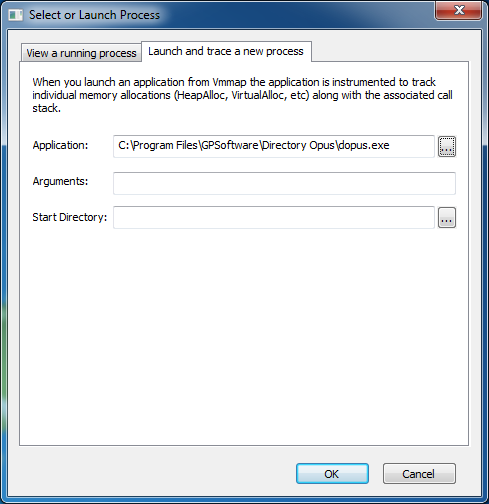
- Before you click OK you need to exit Directory Opus (dopus.exe) so that it can be re-started by VMMap. (This will allow VMMap to keep a record of the memory allocations made by the new dopus.exe.)
Simply closing all Opus windows will not exit it by default. Use the Exit option on Opus's tray-icon menu. (See also: How to Exit Directory Opus.)
- Now click OK in VMMap; it should re-start Opus.
VMMap will also display a colourful list of numbers but don't worry about understanding them. :)
Keep VMMap and Opus running; do not close either of them from now on.
- Use Directory Opus in a way which triggers your memory leak.
Ideally, trigger the leak several times so it is large and easy to find. (Make it leak at least 10MB, or more if you can, so it stands out from other memory allocations.)
Use the standard Task Manager to keep an eye on dopus.exe's memory usage so you can tell when you've triggered the leak.
- Return to VMMap and push F5 (or click View -> Refresh) to make it refresh.
- Click Trace... at the bottom of the VMMap window:

- In the Trace window which appears, sort by the Bytes column and scroll to the top of the list.
It should look something like this where the first item has a much larger Bytes value than the others:
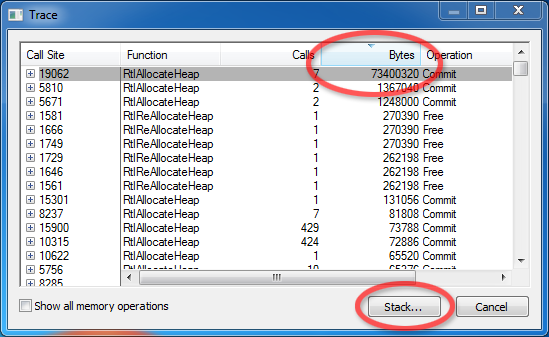
If the first item doesn't have a relatively large Bytes value then you may need to trigger the leak more times (keep VMMap running and remember to Refresh it each time you come back to it), or you may be incorrect about there being a leak at all. Otherwise, continue...
- Select the first item and then click Stack... at the bottom of the Trace window.
- You will now see a list of DLLs (and dopus.exe) involved when the memory was allocated, like this:
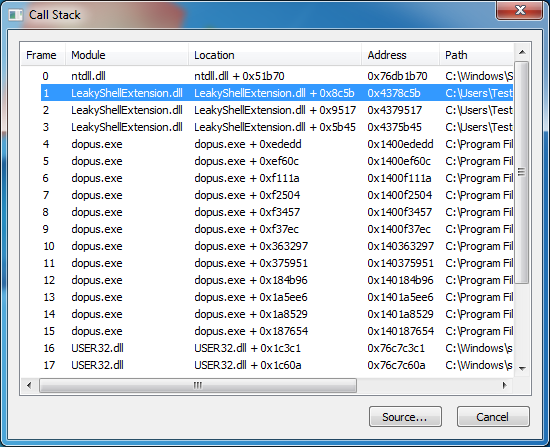
The component causing the memory leak is usually the first non-Windows DLL in the list. You can usually ignore the ones whose paths start with C:\Windows (e.g. ntdll.dll and user32.dll).
In the example above, the memory leak was caused by LeakyShellExtension.dll which, as you can guess, is a shell extension I wrote for this guide which intentionally leaks memory. I wrote it to leak about 10MB each time a file was right-clicked and then right-clicked files a few times to make it leak about 70MB in total.
- Once you have a suspicious DLL the name and path are often enough to identify what it belongs to. If not, find the DLL on disk, right-click it, select Properties and then go to the Details tab. That will usually contain information about who made it and what it's a part of.
Sometimes it's worth looking at some of the other DLLs in the list, too.
Once you know what the DLL belongs to you can try uninstalling (or updating) it to see if the leak goes away.
If the leak goes away then you know who to report the bug to.
If the leak remains, repeat the process and see which DLLs are indicated. If it's the same DLL again then you know that you didn't successfully uninstall it. If it's another DLL, maybe the first one was innocent and can be reinstalled.
(If you don't want to see off-topic stuff like this then use the on-topic filter/label.)
No idea if this will help other people of if it was just my system but when I updated from some fairly old NVidia drivers to 178.24 a couple of weird things happened with my monitors.
TLDR: It seems the drivers apply your old screen-mode/monitor settings incorrectly with some odd results. Easy to fix.
1) After the first reboot the left monitor would not display anything at all once Windows had booted. It displayed a black screen and a message saying it was going into power saving mode except it never went into it.
Forcing the OS to put the monitors to sleep and then wake them up seemed to solve that, luckily.
(You can trigger the power-off immediately using a little tool I wrote a while back: "screensave.exe /poweroff" from http://www.pretentiousname.com/miscsoft/index.html#ScreenSave )
(The monitor that wouldn't show anything is my "primary" monitor where the NVidia control panel, command prompts, start menu, etc. all appear. I was running blind. Luckily I had mIRC set to open on the 2nd monitor and remembered my tool was installed and remembered that mIRC has a /run command. Luckily it worked!)
(NVidia really should make their control panel open on the screen the mouse is on, FFS.)
2) A bit later I noticed that everything on the left monitor was "wibbling" around, like scan lines were moving left and right in certain places. If you've ever put a mobile phone next to CRT and had it ring, it's like that. Except these are TFT displays hooked up via DVI.
This was really weird since swapping the cables over (at the video card end) moved the wibbling to the other monitor. So it was the graphics card, not the cables or monitors or interference from something near one of the monitors... Weird.
However, I solved that as well. At least I think I have, touch wood. If it happens to you open the control panel and change the screen resolution to something else. Apply that and then set it back to what it was.
When I did that for the screen with the problem it seemed to work and the problem then moved to the other screen. Doing the same thing for that screen seems to have made both of them fine now.
NOTE: This was written in 2008. SSD hardware is better now...
(If you don't want to see off-topic stuff like this then use the on-topic filter.)
(Since this was written, affordable SSD tech has improved a lot, so it may no longer be true.)
I bought one of the new SATA2 solid state drives (SSD) in the hope that it would speed up compilation of the project I'm working on. The project is a large and complex financial system. I've been given quite a powerful machine (quad core Xeon, four gig of RAM) to work with but compiling the beast still takes about 1.5 hours.
With the normal HDD I heard a lot of disk thrashing. By default Visual Studio was compiling four projects in parallel (one per CPU) and it seemed to build faster (or at least no slower) if reduced that to two. I thought that the HDD's seek time may be a bottleneck when those parallel compilers/linkers were writing so much data in parallel. SSDs have great seek times so I ordered one to see if it would speed things up.
It didn't. At least not this particular SSD (a new model which only just came out), with the particular project I'm working on and the hardware it was combined with. It didn't make things any better or worse. I tried moving the temp directory to the SSD as well (since Visual Studio writes a lot of data to TEMP) but that made no difference either.
I took the SSD home and tried it with some of my Opus-related projects (plugins etc.) in case it fared better with different hardware. The SSD seemed faster in my home machine than my work machine, probably due to a better SATA2 controller (or maybe a less imposing real-time anti-virus scanner?), but it made no difference to compilation times compared to my existing HDDs. (That said, I've got quite fast HDDs.)
I've got no benchmarks to show because it never made any difference whether the SSD was used or not.
I'm just posting this to warn people not to waste money on an SSD if the aim is to speed things up. You'll get better value out of a fast HDD.
I've heard that some SSDs don't even use less power than laptop HDDs, on average. (Since they don't have a low-power state they are always on. HDDs use more power when active but when they are inactive they use less. So, if what I read was correct, HDDs use less power on average unless you are reading/writing a lot of data.)
This isn't to say that SSDs are useless. They're silent and don't produce heat (which means less fan noise and less power spent on spinning fans). The one I have seems about as fast as an HDD, too, and it's probably difficult to get 2.5" HDDs at this kind of speed. I'd like one in my laptop. (Sadly, my laptop only takes PATA drives so I can't put the SDD I bought into it.) Just don't buy an SSD thinking that the improved seek times will benefit your desktop because chances are they won't.
EDIT:
It's an OCZ Core Series V2 drive. They've only just come out this month (yes, just a few months after the previous generation) and I failed to find reviews that compare them to other drives, or the older Core Series ones. Maybe other types of SSD are better. A friend posted me an interesting article showing that the OCZ Core Series (not V2) and some other SSD models had some big problems due to the controller chip they used but I don't know if the V2 uses the same chip or corrects those problems.
Someone also said that compilation isn't disk intensive so the whole idea was stupid... Uh, it can be disk intensive and seek intensive, especially with the amount of data both written and read by four huge debug builds running in parallel. (Large PDB and SBR files are read and written. Large binaries, too, and all the header files, source files and lib files have to be read, of course.) (It can also be memory and CPU intensive. Where the bottleneck is will depend on the project and other hardware.)
See also: How to find components causing memory leaks, a follow-up to this post.
Shell extensions, video codecs and the like can be a real pain. On one hand, they are good because they let people hook their favourite programs into their file manager with minimal effort. On the other hand, any crashes or memory leaks caused by extensions are blamed on the file manager because they are in-process.
Almost all shell extensions and video codecs are in-process DLLs. By definition, these DLLs contain code which is loaded into the parent process, like DOpus.exe or Explorer.exe. If that 3rd-party code then allocates a lot of memory or crashes the program then Task Manager or the crash dialog will point to the file manager's process, not the extension's DLL. You have to investigate to find out what is really to blame.
Here's a good example.
Yesterday I was testing context menus in Opus as there have been some small code changes in that area. I wanted to check for memory leaks, using a folder with a large number of items, so I went to System32, selected everything and right-clicked while watching in Task Manager.
I was alarmed to see the DOpus.exe memory usage shoot up from 20meg to 1gig in the space of a few seconds! Even worse, the memory remained allocated after the menu was closed. Houston, we have a problem here...
My Opus configuration has most 3rd party items hidden from the main context menu. When I right-click I just see items for some internal Opus commands, one or two 3rd-party tools I use a lot (e.g. Tortoise SVN) and a sub-menu where I have moved everything else to reduce clutter. The huge memory allocation only happened when I opened that sub-menu so I knew it was probably related to context menu extensions. Due to the recent code change I still assumed Opus was to blame at this stage but I needed to narrow things down.
Context menu extensions can ask for the list of selected files in several different formats and it's up to the file manager (Explorer, Opus, etc.) to translate its internal list into the formats each extension asks for. I figured there might be a bug in the conversion code for a particular format which only a few extensions requested. That would explain why I didn't see the problem with my top-level context menu but did when I opened the sub-menu containing most of the extensions.
To test this theory I decided to check whether the memory allocation happened when one or two particular extensions were initialised or bit-by-bit for every extension. I enabled the context_menu_debug advanced option in Opus (described in the Crash/exit/100%CPU when right-clicking certain files FAQ under 2. Finding the Culprit) and loaded DebugView. Now I could watch the memory usage change in Task Manager while each extension's name was printed as it was initialised.

It was easy to see that the huge memory allocation happened when just one of the extensions, Acronis True Image Shell Context Menu Extension, was initialised. That seemed odd. It was possible that Opus had a bug producing data in a format which only this one extension requested but, on probability, I was starting to think the problem was the extension rather than Opus. I temporarily disabled the extension by adding its GUID (the long-number-in-curly-brackets that appears before the extension's name in DebugView) to the ignore_context_menus advanced option in Opus and, sure enough, the problem went away.
This raises another point: You can't always see which extensions are involved when a problem occurs. There are usually no items on the context menu from the Acronis True Image context menu extension. It's invisible unless you right-click the right type of file yet it's always called whenever a context menu is displayed. The Acronis extension, like many others, is added to the * file-type which means that the file manager always passes it the list of files whenever you right-click something (unless you've hidden 3rd party context menu items). Given the list of files, the extension returns a list of menu items to add. That list can be empty and often is. Unless you switch on context menu debugging you have no way to see the complete list of 3rd party code which may be slowing things down, leaking memory or crashing the process.
It was only at this point I did what I probably should have done right at the start: Test the same thing in Explorer. If both Explorer and Opus experience a huge memory leak while initialising a context menu extension then we can safely blame the extension. Sure enough, that's what I saw:

The jump in the memory usage graph is the point where I right-clicked and you can see that the memory stays allocated for good:

Phew, it's not Opus's fault, then.
The even better news is that the problem appears to be fixed in True Image 11.8101. I had been using the previous version, 11.8053, until I discovered this problem (which doesn't seem to be mentioned in the list of changes but was fixed by updating).
Off-Topic: This post isn't about Directory Opus, but we thought it might be useful to some of you anyway. Remember that you can use the on-topic label and on-topic RSS feed if you only want to see Opus news.
Hide the Language Bar from UAC Prompts on the Secure Desktop
Update: See the comments for an alternative method which is probably much better!
Some time after I installed Vista the Language Bar started to appear on the secure desktop. The secure desktop is the darkened screen where UAC prompts appear, unless you've disabled the secure desktop or disabled UAC completely. I only ever use one keyboard language so this extra thing on the screen isn't useful to me and is slightly distracting/annoying.
A quick Google found several other people trying to remove the Language Bar but no answers. I hunted through the registry and discovered how to do it and figured I'd post the information here (and on my web site, because weblogs are rubbish for finding non-recent things) so that others can find it.
- Run RegEdit.exe (as an administrator)
- Go to HKEY_USERS\.DEFAULT\Software\Microsoft\CTF\LangBar
- Change the ShowStatus value from 0 (zero) to 3 (three).
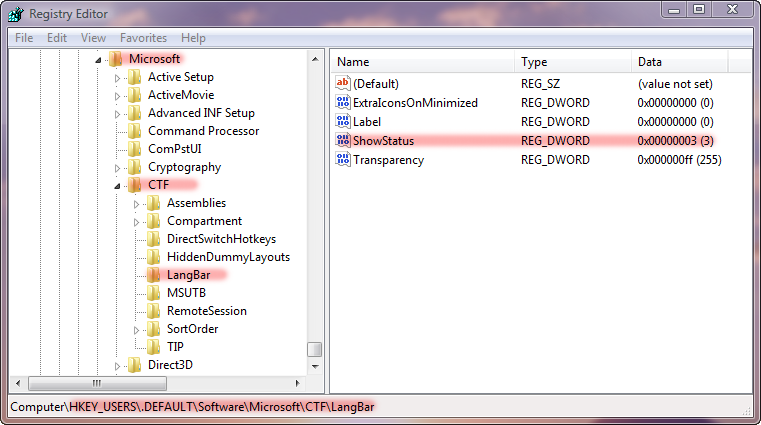 (Click image for full-size version.) That's it! Easy when you know how. It looks like the secure desktop inherits its settings from the .DEFAULT user profile. Important Note: If anyone using your computer might need to type an administrator password into a UAC credentials prompt using a different keyboard layout then you should leave the Language Bar alone, else they may find it difficult or impossible to type their password.
|